
Chrome devices which have reached their end of life (EOL) and cannot update beyond Chrome 116 may encounter issues when using Senso.
Chromebooks must have provisioned licenses and be managed through Google Admin. Please also review your licensing configuration by referring to the following knowledge base article: Device Licensing
Section 1: Deploying Senso Extension
Log in to your Google Admin Console as an administrator.
Go to Main Menu → Devices → Chrome → Apps & Extensions → Users & browsers. Select the Organizational Unit (OU) or sub-group within an OU where you want to force-install the Senso Extension. In this example, we are deploying it to the "Administrators" OU.
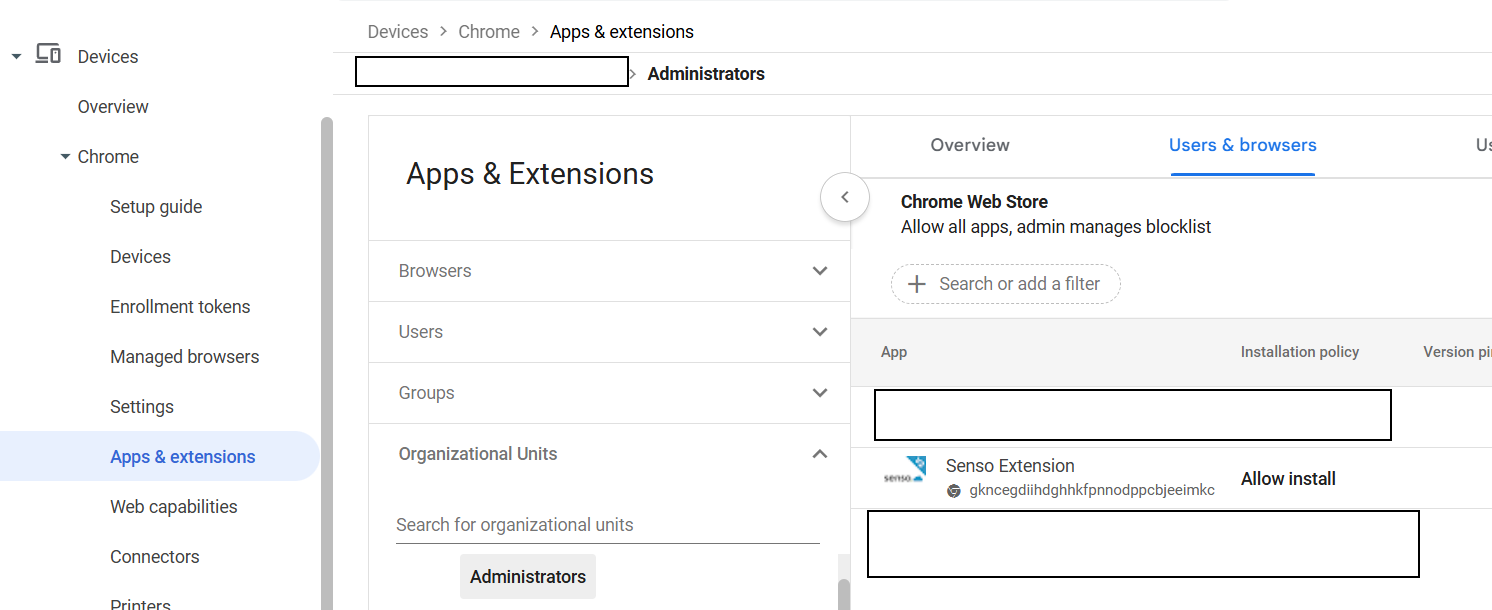
Note: The Senso Chrome extension can only be deployed to OUs containing user names and emails, as it is a user-based installation. If deployed at a device level, Senso will not install.
In the bottom right-hand corner, click "Add from Chrome Web Store."

Enter "senso.cloud" in the search box for Search Extensions and Themes, then choose the Senso V2 Extension from the results.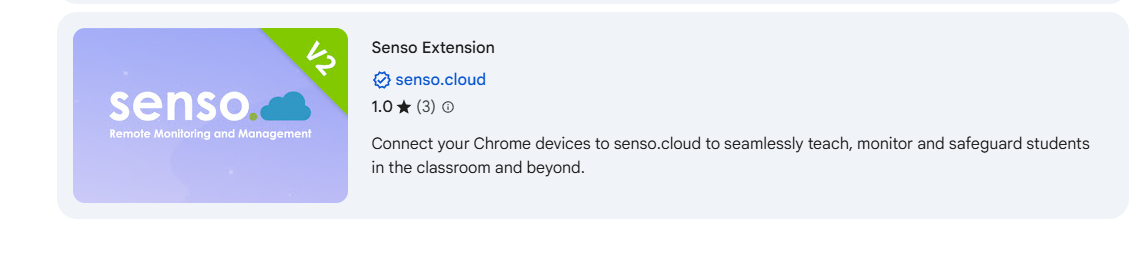
Click "Select" to add it to your chosen OU.
Modify the client settings to be "Force Installed" or "Force Installed and Pin to Browser Extension."
Click "Save" at the top to save the changes.
Download your JSON values , located here , please ensure an assignment key and site ID has been configured
Copy your configuration file and paste it into the "Enter a JSON value" field
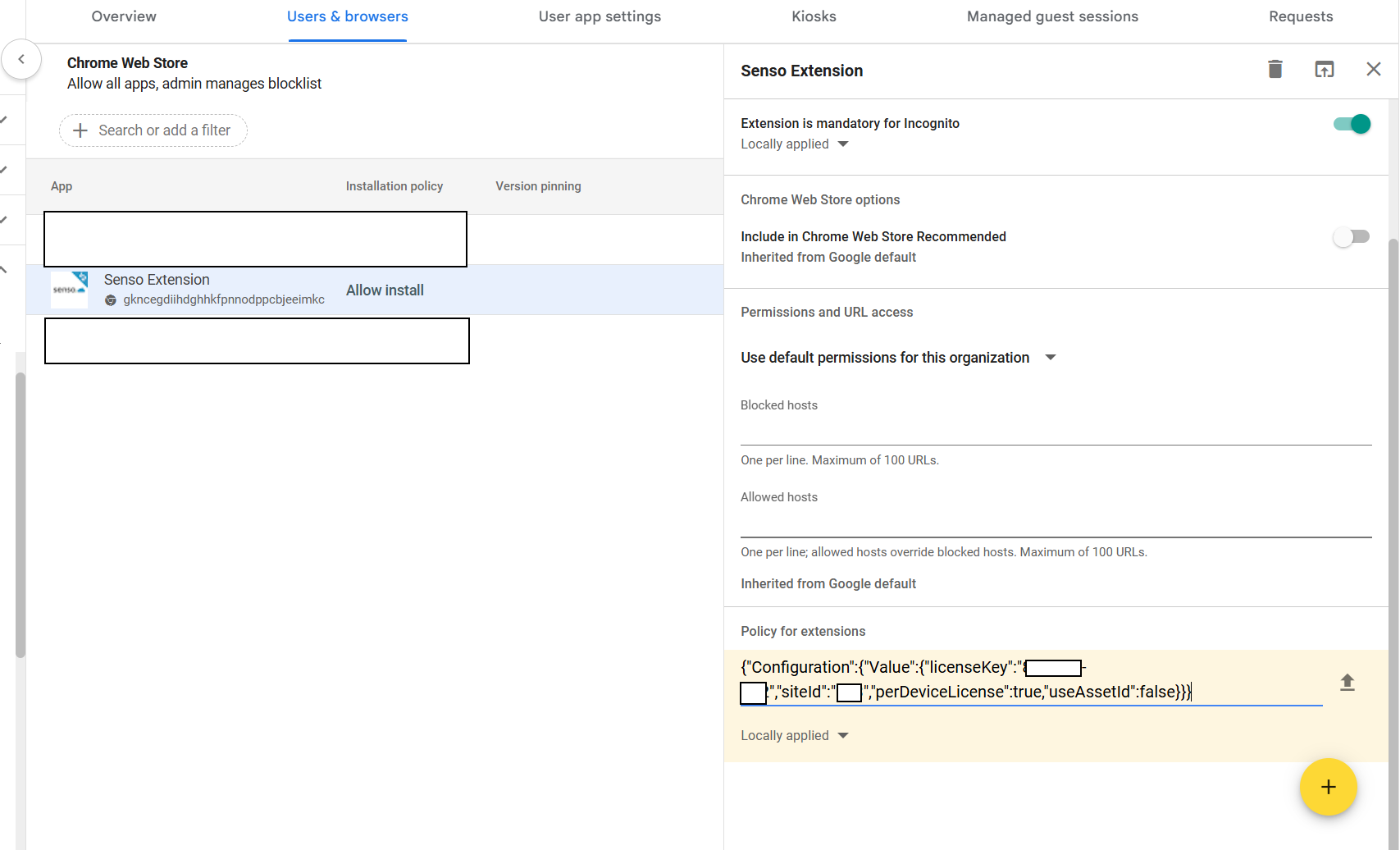
JSON Custom Configuration
Default JSON - {"Configuration":{"Value":{"licenseKey":"XXX-XXX-XXX","siteId":"XXX","userBasedLicensing":false,"useAssetId":false,"disableRemoteCapture":false,"enableGroupDiscovery":false,"promptForDesktop":false,"promptForDesktopCount":-1,"promptForDesktopForced":false,"promptForRemoteOnly":false,"disableTabCapture":false}}}
Title | Description |
licenseKey | Senso license key used to connect the client. |
siteId | Site ID to auto-join clients to Senso. |
userBasedLicensing | If set to true Senso will license the Chromebook by user rather than per device. |
useAssetId | If set to true Senso will attempt to identify the Chromebook by its asset ID, if set, rather than serial number. |
disableRemoteCapture | If set to true this will prevent remote viewing of the Chromebook. This will not prevent screenshots from being taken for safeguarding purposes. |
enableGroupDiscovery | If set to true Senso will attempt to discover the OU & group membership from Google Directory for the user/device. Configure the integration before enabling this option |
promptForDesktop | If set to true Senso will prompt the user to consent to sharing their entire desktop. If set to false then only the current tab will be displayed for the device. |
promptForDesktopCount | Number of times to prompt the user to share their desktop. Set to -1 to continuously prompt. |
promptForDesktopForced | If set to true Senso will lock the user's device until they accept the desktop capture prompt. |
promptForRemoteOnly | If set to true Senso will only prompt the user to share their desktop when viewed through the full remote view, not in thumbnails. |
disableTabCapture | If set to true Senso will not capture the active tab when remote viewing. |
The Senso client will now start deploying to users within the selected OU who log into Chromebooks managed under the same Google Admin tenancy.
Note: If your devices are in a separate tenancy from the users, the client will not function.
Section 2: Additional Settings
2.1 Preventing users from turning off the Senso service via Task Manager:
Go to Devices → Chrome → Settings → Users and Browsers. Use the filter to search for "Task Manager."
Choose "Block users from ending processes with the Chrome Task Manager."
Click "Save" at the top to apply the settings.

2.2 Allowing Senso access to thumbnails:
Go to Devices → Chrome → Settings → Users and Browsers. Use the filter to search for "Screenshot."
Choose "Allow Users to take Screenshots and Video recordings."
Click "Save" at the top to apply the settings.

2.3 Resolving potential conflicts with Senso Extension:
Go to the Google Admin Console → Devices → Chrome → Settings → Users & browsers → Cookies → Allow cookies for URL patterns → [*.]senso.cloud.