
This module will allow you to decide which applications can be used by the users/devices within any session. You will be able to select from the list of applications and anything that is not selected will be blocked.
Select the ‘Allow Apps’ Module.
This will open the options box for the module.
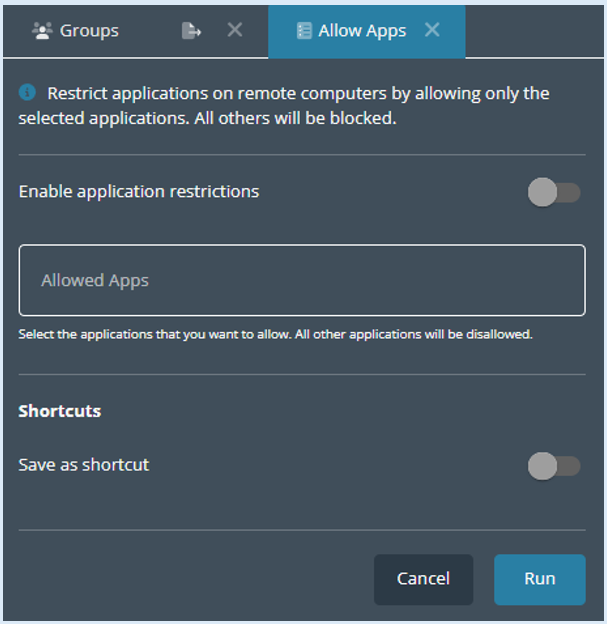
Click into the ‘Allowed Apps’ box.
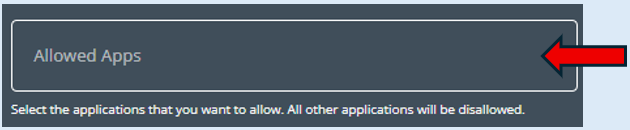
This will provide you with a list of applications that you can select from. Click on any of the applications that you would like to be allowed.
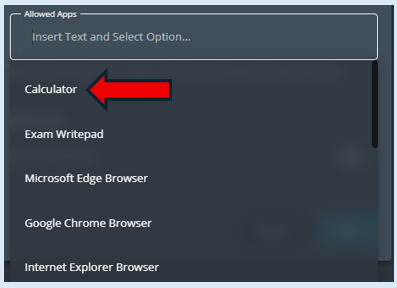
All applications that you select will show in the ‘Allowed Apps’ box.
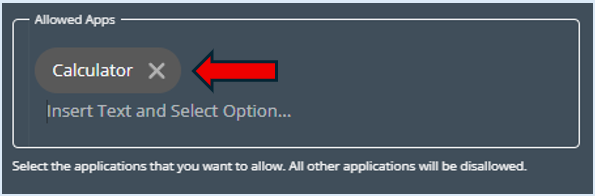
Top Tip - You can add as many applications as is required.
To enforce the list that you have created you will first need to enable the applications restrictions toggle button to the ‘On’ position.

To action the list of applications that can be used select ’Run’.
Once you have selected ‘Run’ a log will appear showing that you have completed the action.
If you wish to return to the default setting of allowing all applications, toggle the ‘Enable application restrictions’ button to the ‘Off’ position.

To complete this action, you will need to select ‘Run’.

This will update the log to show that you have made a new action.
Adding in your own applications
You do have the option of adding applications that are not in the list manually. You would need to type the applications executable name for it to work. If you are unsure of the applications executable name, we would recommend that you speak to your Technical Team to assist you with this however you can locate the applications executable name by following this process:
Open the application on the device that you are using. For this example, I want to use the ‘Paint’ application.
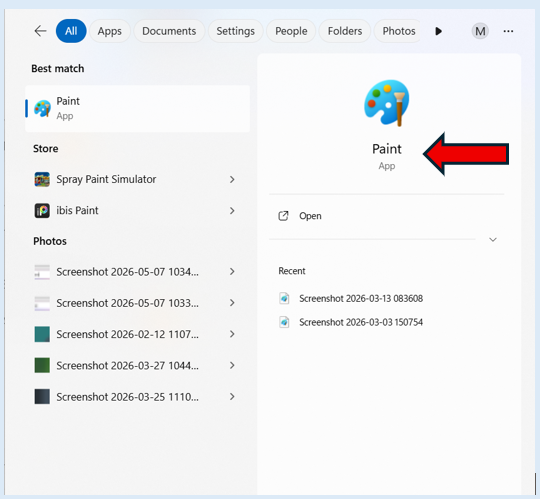
Type paint into your windows search option

Whilst you are typing this in, another window will open on your screen providing options associated with the word you have typed. Click on the option for ‘Paint’.
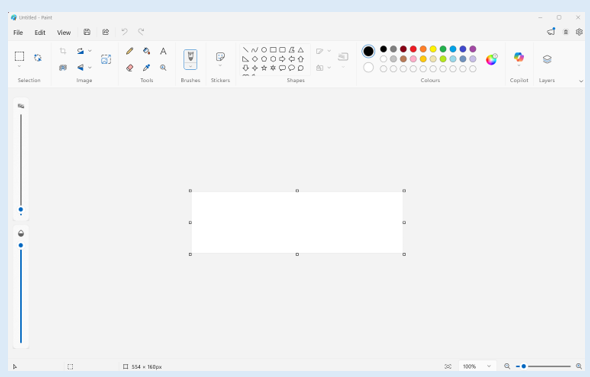
The ‘Paint’ application will open on your device.
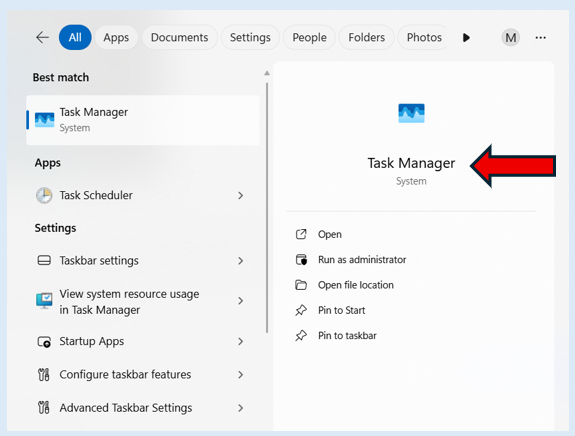
Next you will need to open your ‘Task Manager’. Type this into your windows search box.

A new window will open, select ‘Task Manager’.
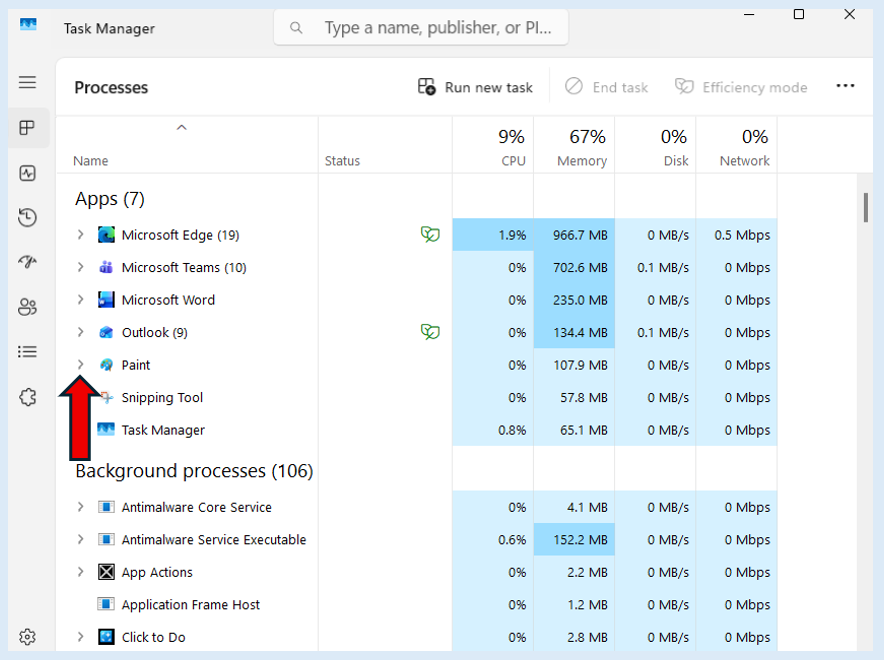
This will open another window, locate the ‘Paint’ application from the list. Click on the expansion icon.
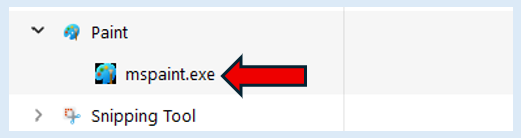
This will then show you the applications executable name.
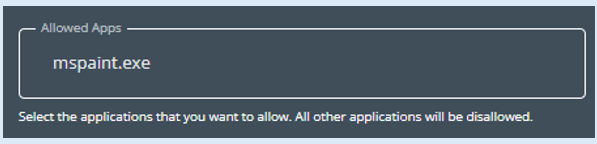
This is what you will then need to type into the ‘Allowed Apps’ box.
If you then click ‘Run’
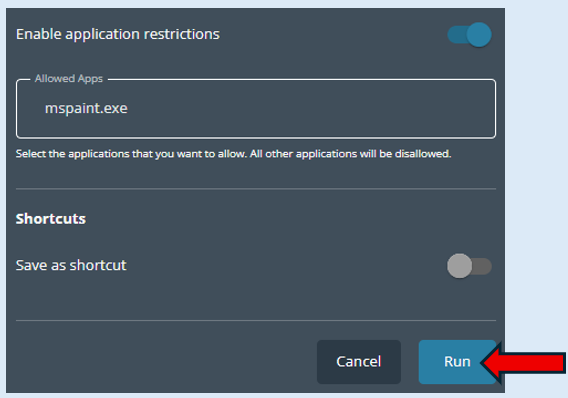
This will be the only application that can be accessed by the devices that were selected.
Microsoft Store
You also have the capability to purchase/download applications from the Microsoft store. To use the ‘Allow Apps’ feature you would still need to know the applications executable name to type in. You will be able to follow the above process to locate the applications executable name.
Shortcuts
This module will also allow you to save a list you have created as a shortcut. To do this please see the guide ‘Creating Shortcuts’.