
This module will allow you to send a message to the devices/users that have been selected. This provides an easy way to quickly communicate with users within your group.
Select ‘Send Message’ from the task bar.

This will open the options box.
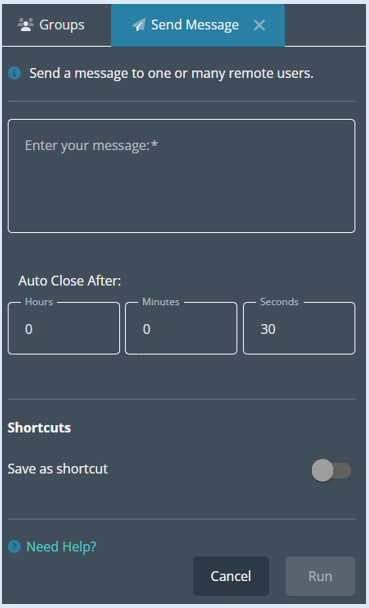
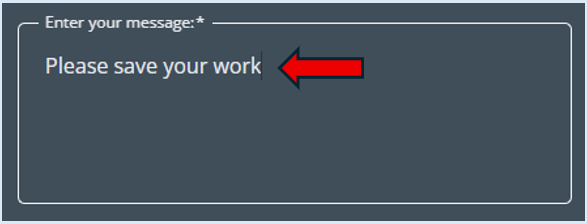
Add in your message in the ‘Enter your message’ box.
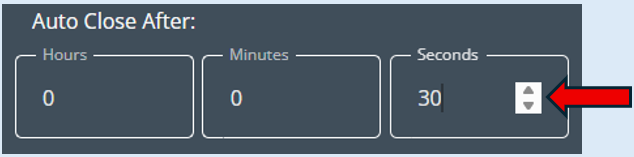
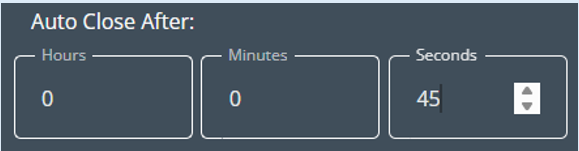
Below this box you can then decide how long the message will stay visible on the device/user’s screen. You can set this to what you require or leave it as the default setting which is always 30 seconds.
To send the message, click the ‘Run’ button.
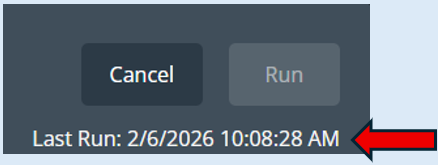
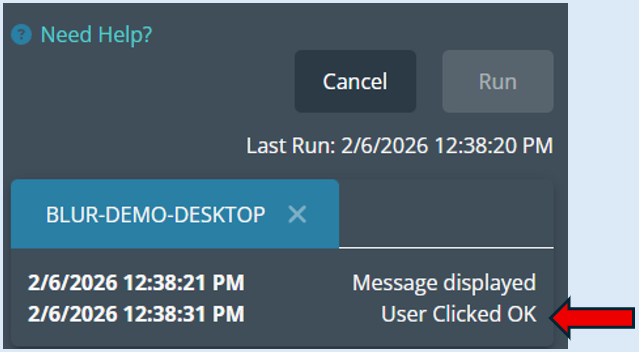
A log will be visible to confirm the action that the message has been sent.
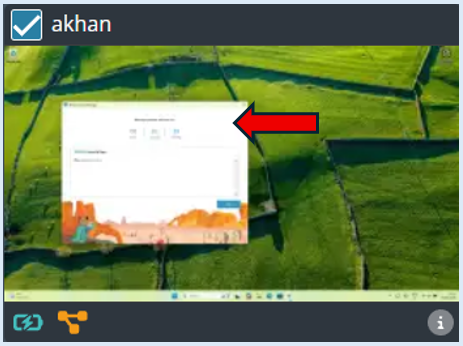
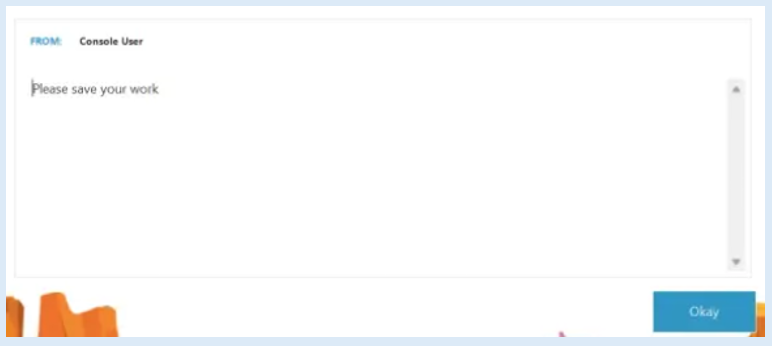
The message will automatically open a new window on the device/user’s screen.
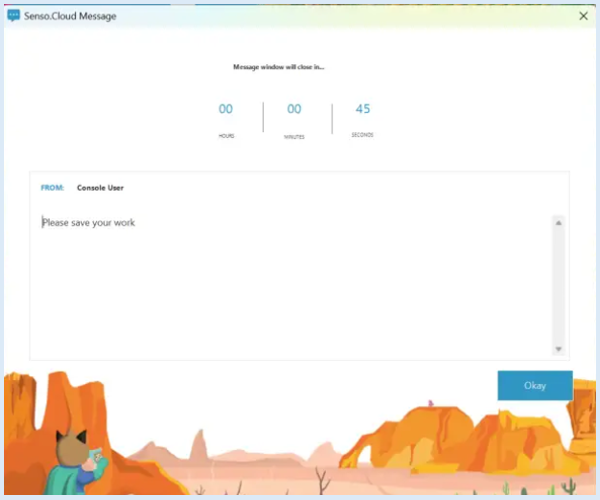
The timer will count down to indicate how long the message will be visible for.
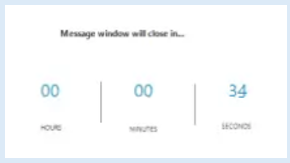
Once the user has read the message, they will be able to click ‘Okay’ and the window will close instantly, the user will not need to wait for the timer to countdown.
If a user responds by clicking 'Okay', it will appear as a log.
There is also an option to create shortcuts. This is where you can create questions that can be saved and then used when required.
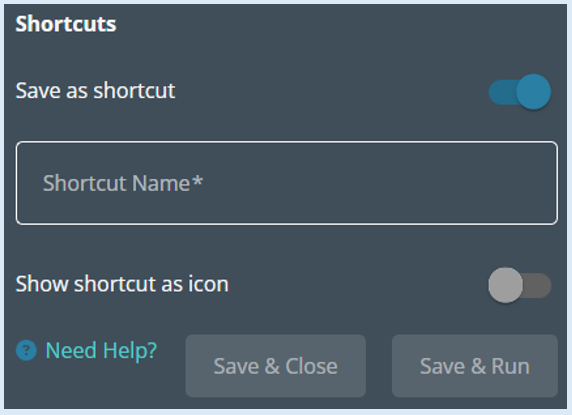
If you would like to do this, please see the guide titled ‘Creating Shortcuts’.