
This module will allow you to lock the screen of any selected device so it will be unable to be operated by a user.
Top Tip – To lock a screen you must first select the devices.
Select the ‘Lock Screen’ Module.
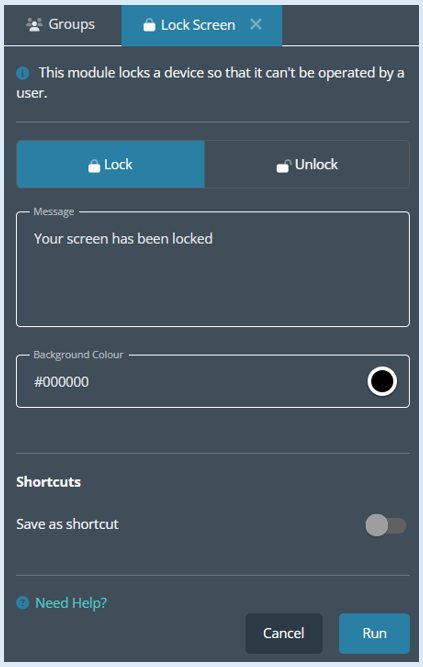
This will open all the options available within the module.
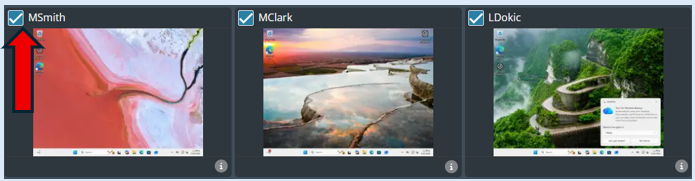
To quickly action the lock screen option (using all of the default settings), select the devices you wish to lock by ticking the thumbnails.
If you wish to lock the entire group, then click the ‘Select All’ option.
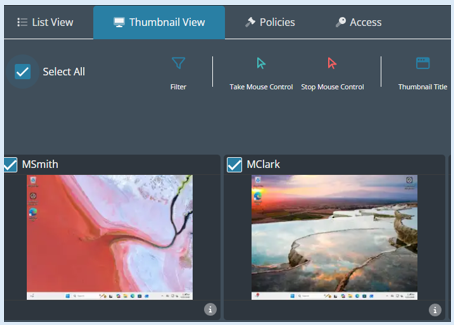
All of the devices will be selected and this will show with a tick.
Finally select the ‘Run’ button.
A log will appear underneath the ‘Run’ button indicating that the action has been completed. The devices that have been locked will each have a message indicating to the user that their device has been locked.
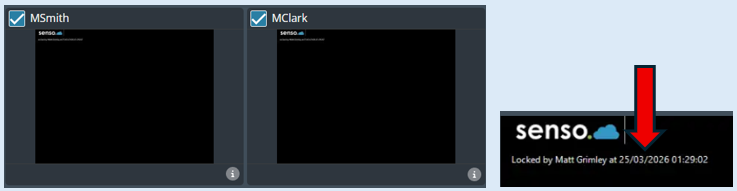
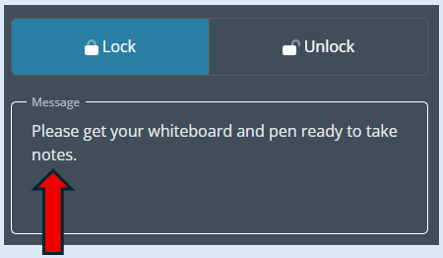
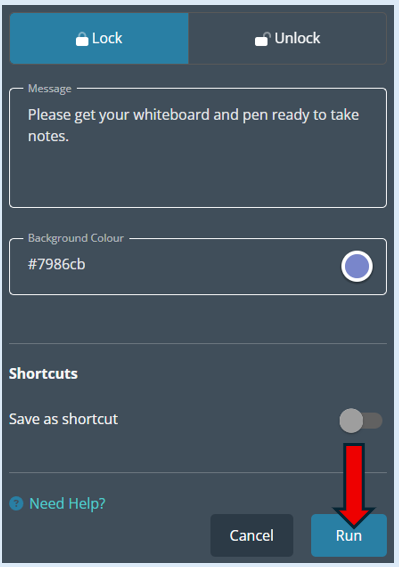
When locking a device there are several options that you can customise. This begins with the ability to customise the notification that will show on the locked devices. Type in your message in the ‘Message’ field.
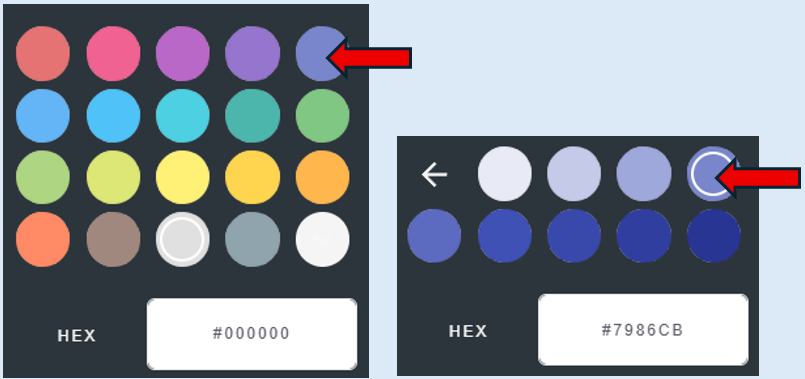
You can also change the background colour. Click on the circle.
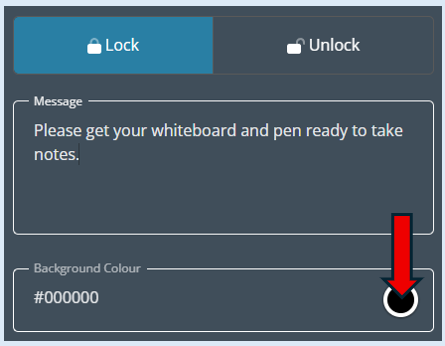
An additional colour pallet will show, this provides more colours to select from.
Select ‘Run’.
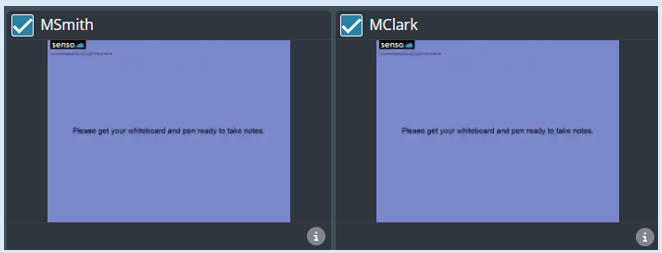
Your custom changes will now show on the selected devices.
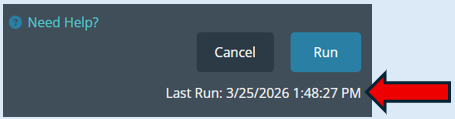
A log will also show confirming your action.
This module will also allow you to ‘Unlock’ the devices that have previously been locked.
Select ‘Unlock’.
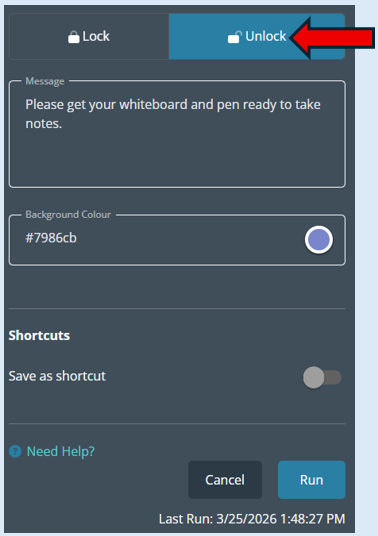
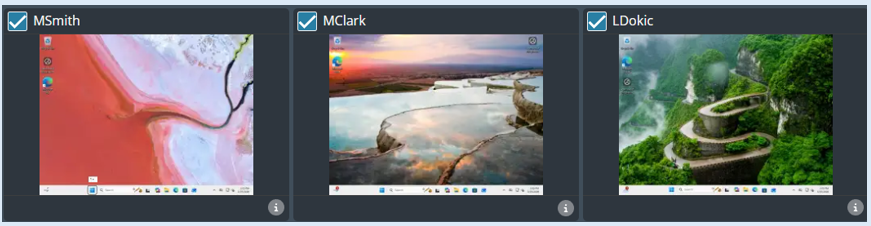
All of the devices that you locked will still have their tick in the thumbnail indicating they are still selected. You can remove a tick from any user/device that still needs to stay locked.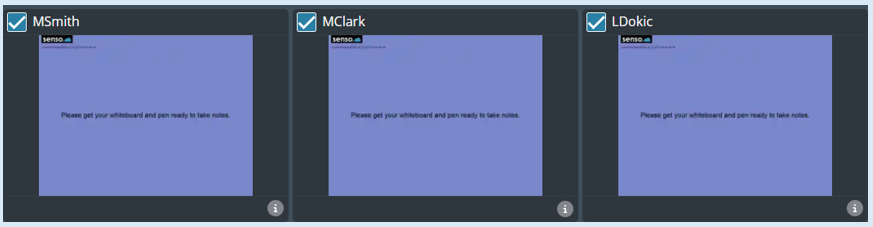
Now select ‘Run’.
The selected devices will now be unlocked.
Top Tip – You can create shortcuts for the ‘Lock Screen’ option. This means you can quickly lock a screen with the chosen message and background colour. You can pre-determine the message; this can then be accessed quickly.
To create a shortcut or show the shortcut as an Icon please see the guide titled ‘Creating Shortcut’.