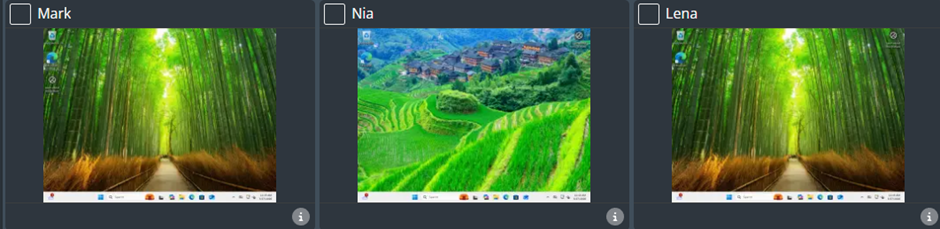
This module will allow you to quickly and easily view the screen of any user within your group and take control of the device (keyboard and mouse). The guide will also show you how to take Full Control, Shared Control and relinquish control of a device.
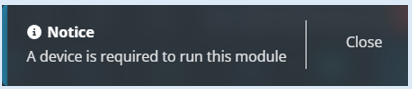
Top Tip – You must select a device to take control of before you select the ‘Remote Control’ Module otherwise you will get a notice pop-up.
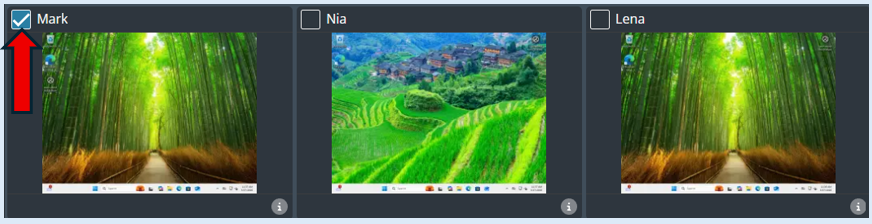
Select the thumbnail you wish to take remote control off.
Select the ‘Remote Control’ Module.
The selected device will open as a full screen.
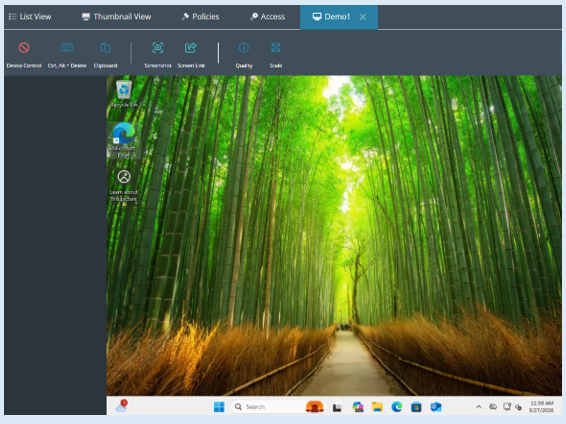
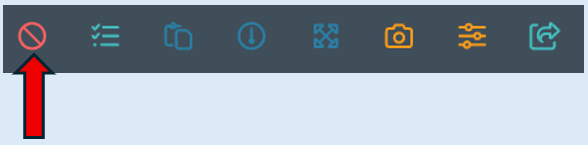
This will open all the options available within the module. To take control of the device click the ‘Control’ icon.
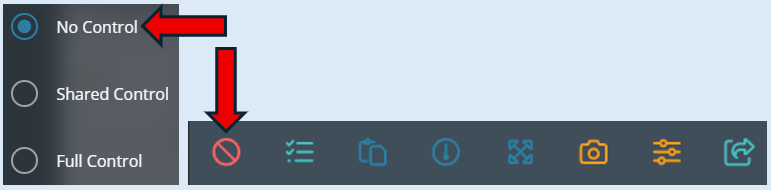
This will provide you with three options. The default setting will be ‘No Control’ as currently you do not have any remote control of the device.
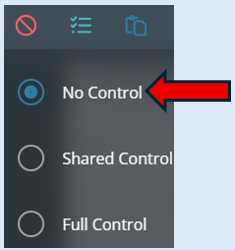
No Control - The console user has no control over the device, they will only be able to view the screen.
Shared Control - This allows the console user to have access to the mouse and keyboard and still allows the end user on the device to use the physical mouse and keyboard to control the device.
Full Control - This stops the end user from being able to use a physical mouse and keyboard at the device restricting the device to only be controlled through the senso portal.
To take sole control of the device, select ‘Full Control’. The control Icon will change to a green arrow indicating that you have control of the device.
No control
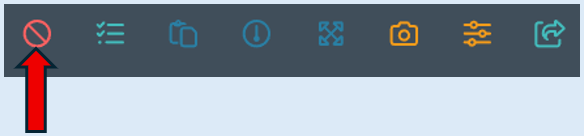
Full control
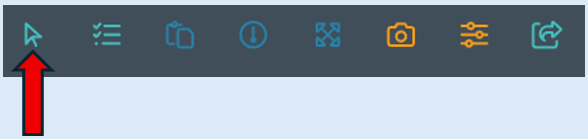
Shared control
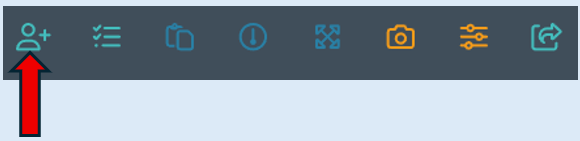
Once you have completed your action/task on the selected device, you can relinquish control of the device in two ways. First option is to select 'No Control'.
Alternatively, close the thumbnail that you currently have access to by clicking the ‘X’ icon next to the device name.

This will take you back to the initial thumbnail view. You now no longer have remote control of the device.