
This module will allow you to automatically open a chosen website or application onto any selected device within your group.
Accessing the Module
Select ‘Run Website/App’ from the task bar.
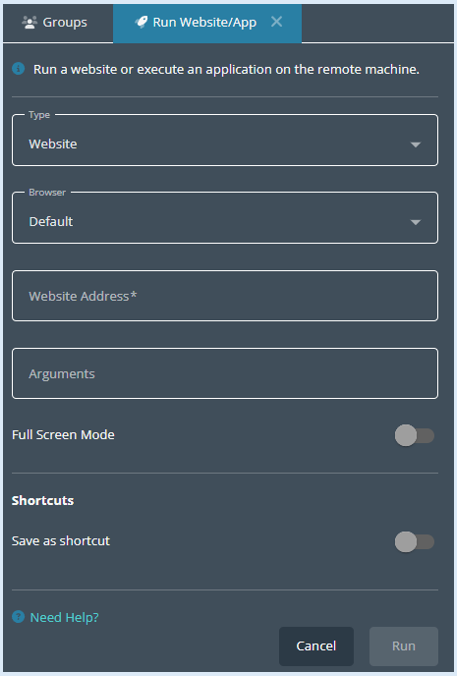
This will open the options box.
How to run a website
To run a website on the selected devices, check that the Type box has website selected (This is the default option).

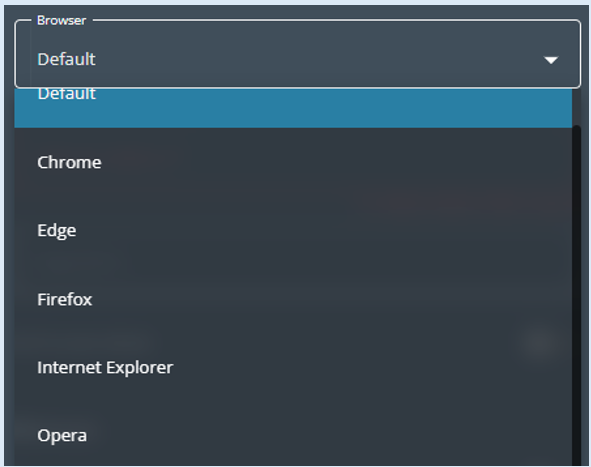
The next option is to select the browser that the website will open in.

Click in the box and a dropdown menu will open to select from.
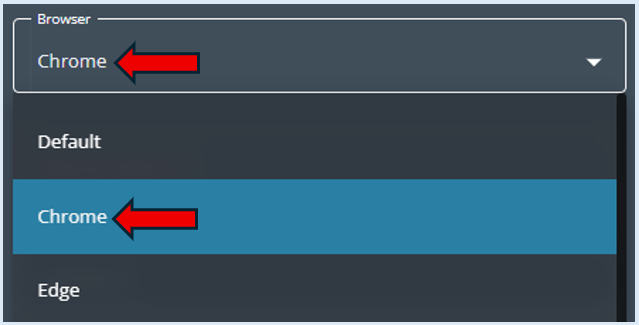
Select the required browser (It will turn blue indicating your selection) and will appear in the selection box.
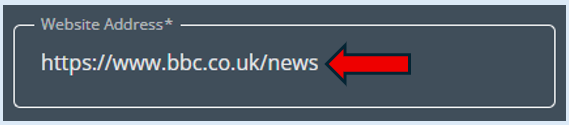
Next add in the website address that you would like to be opened.
Top Tip - You will need to make sure that your Website Address starts with either https:// or http://
The final step to complete this action is to select ‘Run’.
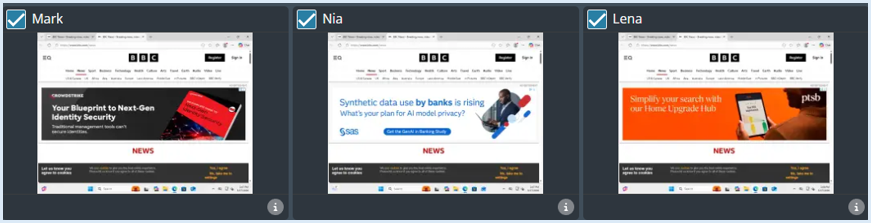
The website will open in a new window on the selected devices.
There is also the option to open the website as a full screen view. To do this simply toggle the ‘Full Screen Mode’ button into the ‘On’ position.

Please note that you would need to select this option before selecting ‘Run’ when setting up the website that you wish to open on the selected devices.
How to run an application
This process is very similar to how to run a website. The key difference is you will need to change the ‘Type’ box to Application.
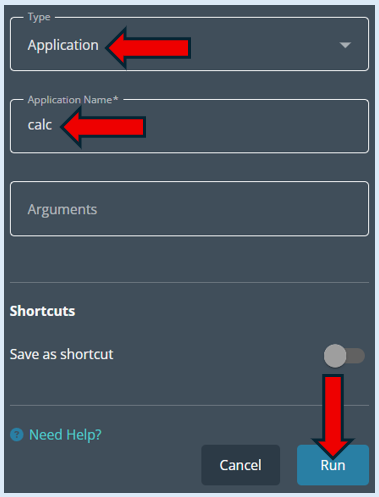
Type in the application name then select ‘Run’.
The application will open on all of the selected devices.
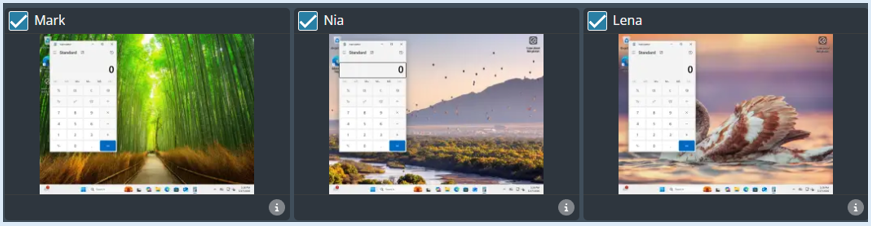
A log will be visible confirming your action.
Top Tip – You can create shortcuts within this module. Please see the guide called ‘Creating Shortcuts’.