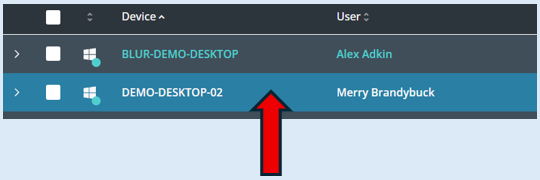
This guide will provide you essential information about the ‘List View’ that you can use within your console.
When using the console, you have two options as to how you view the group you are working with. These are the ‘List view’ and the ‘Thumbnail View’. The default view can be set to your preference. This can be done via user preferences if access has been given or speak with your IT Team/leader.
Select your group.
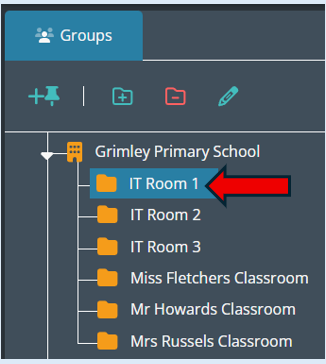
The users/devices in this group will appear on the main section of the console.
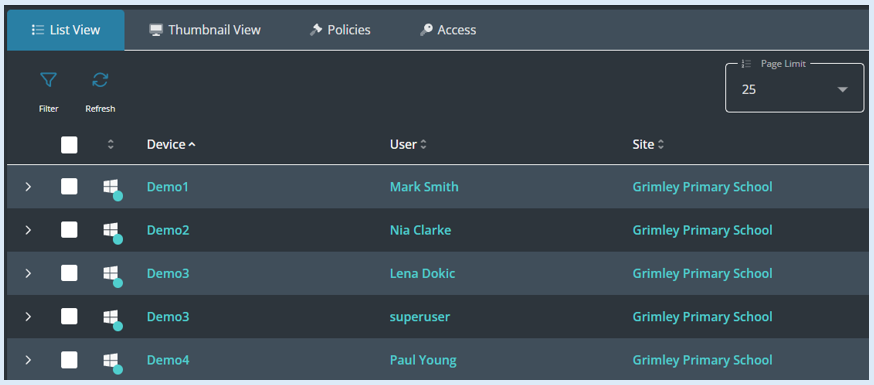
The list view will provide you with information about each user/device within the group. You will initially see the device name, username, site name and client number.

If a device is part of the group but not currently logged in, this will be shown.

You can open more information about the device by selecting the ‘Arrow’ Icon.
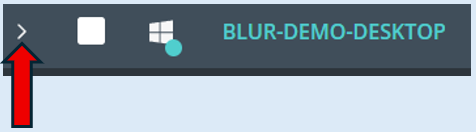
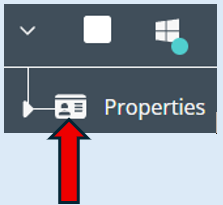
This opens an additional icon, click on the ‘Properties’ icon.
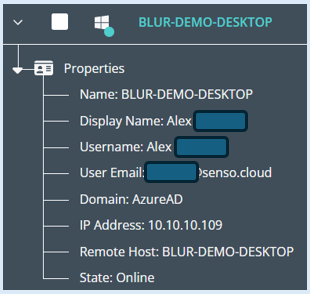
The additional information about the device you have selected will open.
You can select devices that you would like to perform an action against by ticking the white box icon, once selected a blue tick will appear.
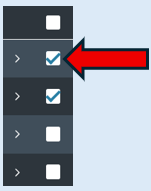
If you would like to select all devices with one click, select the white box icon which appears at the top of the list.
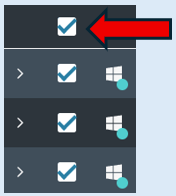
You can hover over the ‘Device type’ icon to see what device that user is logged in on. Hover over the icon and it will tell you the type of device. This could be Windows, Chrome etc.

Additional Functionality
Filter

Click on the icon and a drop-down menu will open.
You can select which devices appear in the ‘List View’.
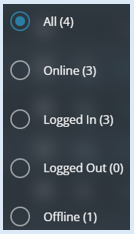
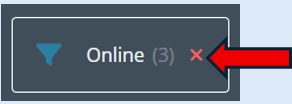
The filter icon will indicate a filter is being used and there is the option to close the selected filter by clicking on the red ‘X’.
Refresh Group Members

This option will allow you to refresh the devices that are part of the group.
Run Scene

This is a permission-based module, it will only show if you have access to it. If you do, please see the ‘Scenes’ training guide which will explain how this module can be use.
Page limit
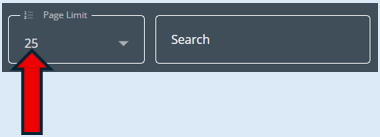
This will allow you to decide on how many devices will show in your list. You can also use the page icons to move back and forwards through your list of devices.

Search

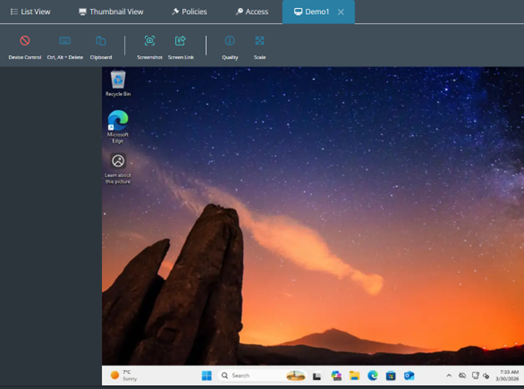
Top Tip – If you would like to view any device in your list just click on the device and it will open the thumbnail view.