
In several of the modules available there is an option to create a shortcut or create a shortcut as an Icon. The idea being why keep repeating the same task multiple times when you can do it once and use the shortcut whenever needed.
Creating a shortcut
Select the module that you would like to work within. For the purpose of this guide, we will be using the ‘Lock Screen’ module.
Select this icon.
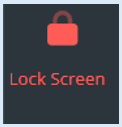
The options box will open.
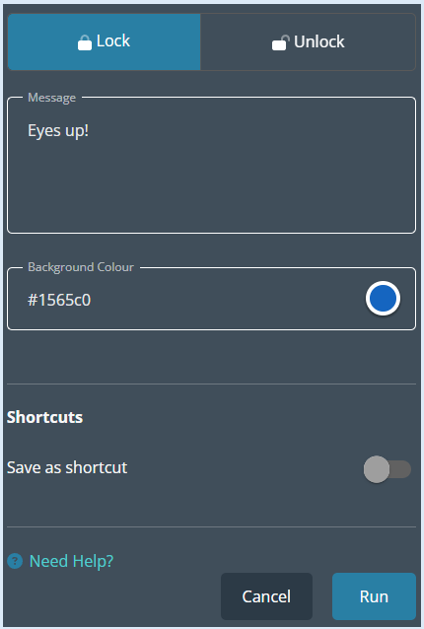
Add in your criteria for this specific action/shortcut then toggle the ‘Save as shortcut’ button to the 'On' position. This will then open up additional options.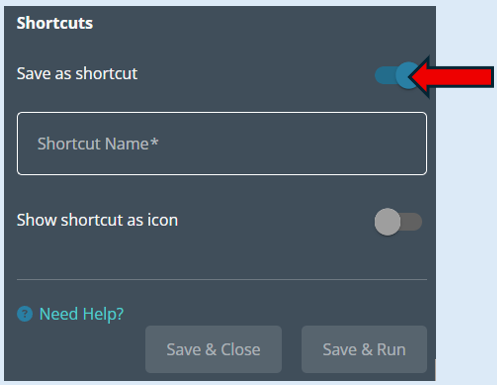
Add in the name for the shortcut.
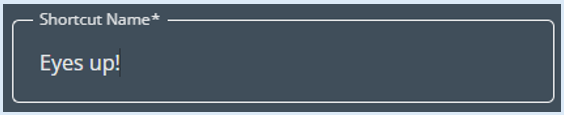
To complete saving the shortcut there are two options you can select from.
Both options will save the shortcut. If you want the action to be enforced straight the way, then select ‘Save and Run’ or if you are creating the shortcut in preparation for another time, select 'Save and Close'.
The shortcut can now be accessed from the drop-down arrow underneath the module Icon that you have created the shortcut within.
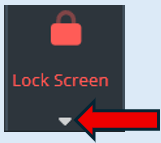
Once you have clicked on the dropdown menu you will be able to access all of the previous shortcuts that you have created.
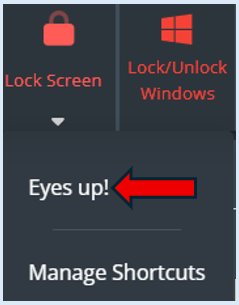
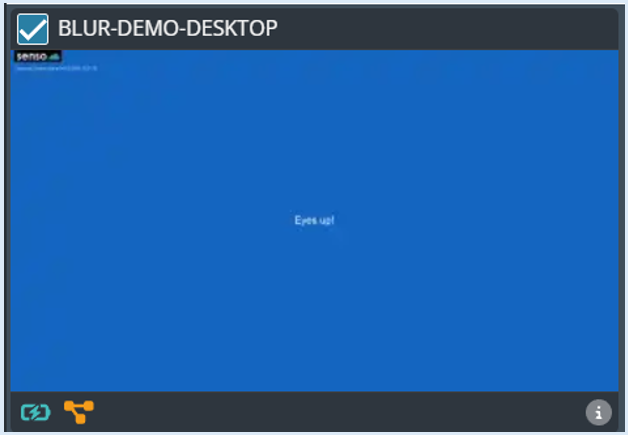
Click on the shortcut and this action will be performed against the selected devices.
You can manage the shortcuts that you have created from the drop-down menu.
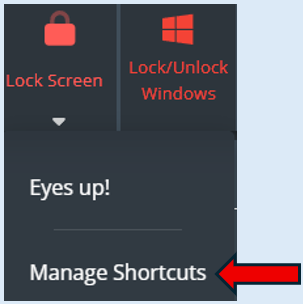
Select ‘Manage Shortcuts’.
From this screen you will be able to ‘Edit’ or ‘Delete’ any shortcut.
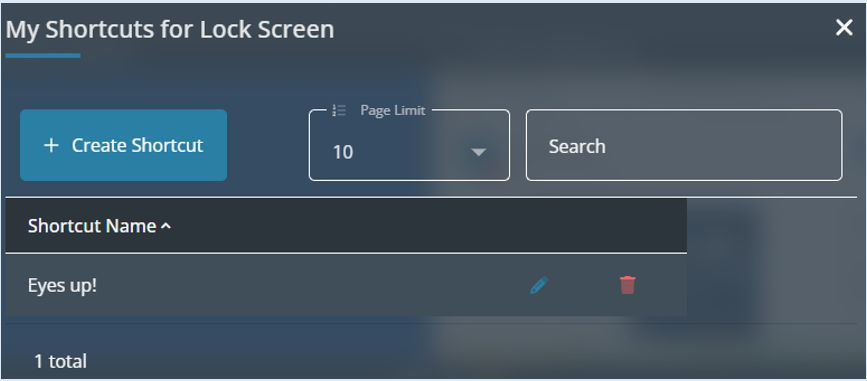
If preferred, you can have an Icon showing on your toolbar with the shortcut.
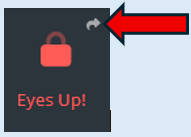
The arrow above the icon indicates it is a shortcut.
Top Tip – Any shortcut created including Icon shortcuts is managed in the ‘Manage Shortcuts’ Module drop-down.