This guide will show you how to broadcast a screen within a session/lesson.
Accessing the Broadcast module
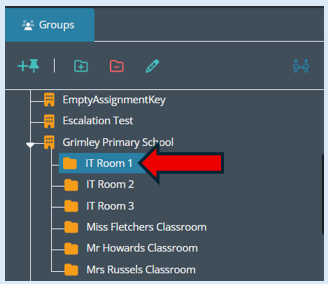
Once you have logged in to Senso.cloud, your console will open. Select the group that you wish to work with.
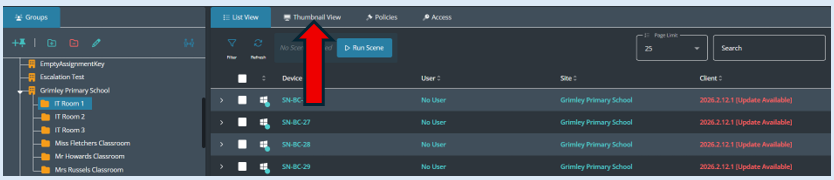
You then need to select the ‘Thumbnail view’ if your default setting takes you to the ‘List View’. Once selected you will see all devices as thumbnails.
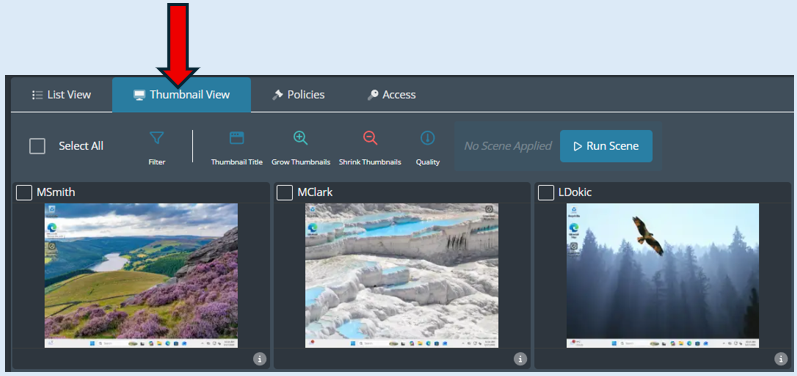
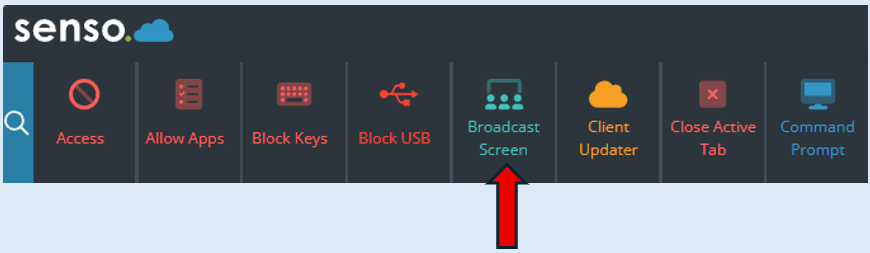
Select ‘Broadcast Screen’.
Setting up a broadcast
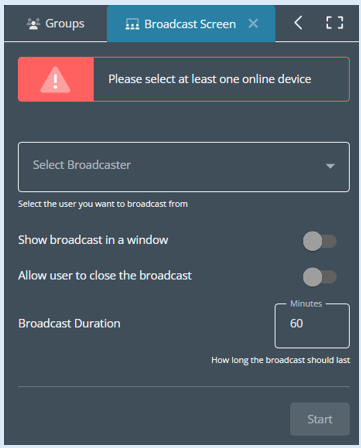
Once you have selected the ‘Broadcast Screen’ icon the options box will open on the left-hand side of your console.
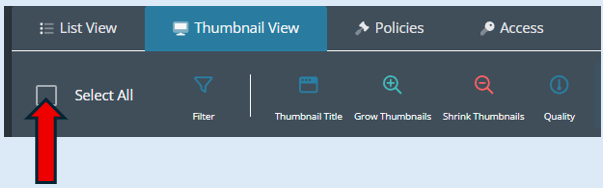
Select the devices that need to be part of the broadcast. If it is all devices within the group, use the option ‘Select All’ or you can select the devices needed by ticking the thumbnails individually.
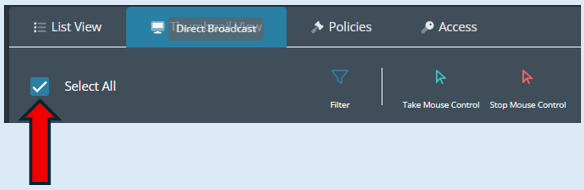
A tick will appear in the ‘Select All’ box. All the devices in the group will have a tick at the top of the thumbnail to indicate they have been selected.
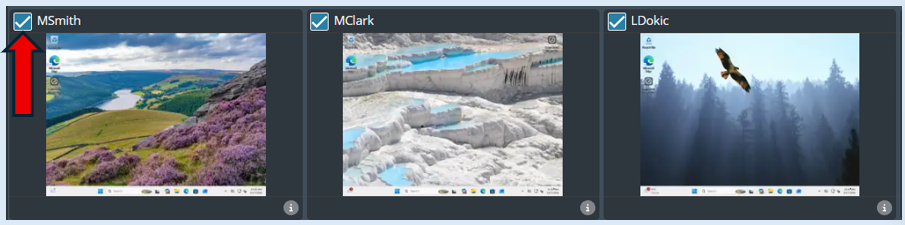
Please Note – You can select devices individually by ticking the select box at the top of each thumbnail.
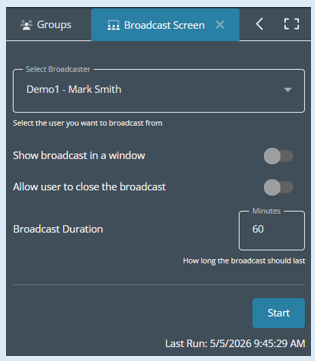
Next select the device that you wish to broadcast from. Use the drop-down arrow within the ‘Select Broadcaster’ field. Your device will automatically show at the top of the list as long as you have the senso.cloud client installed on your device.
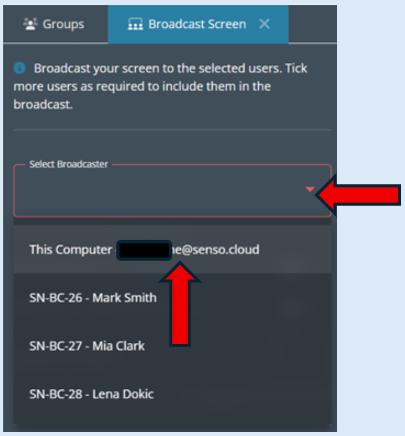
Once you have selected the broadcaster, their name will appear in the ‘Select Broadcaster’ field.
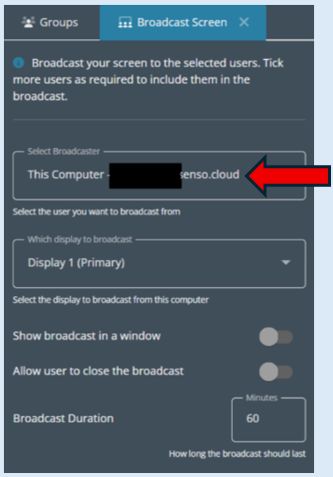
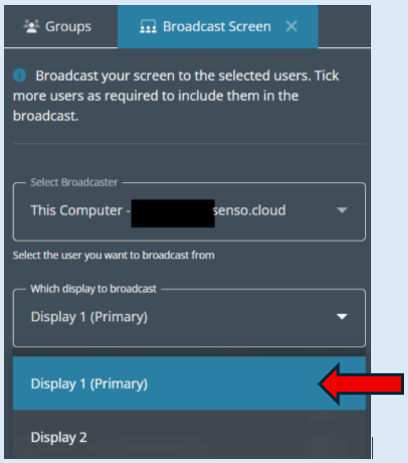
If the selected broadcaster has more than one display screen, an additional option will open that will allow you to select the screen you wish to broadcast from. Select which screen you wish to broadcast from.
The broadcast will show as a full screen on each device unless you would prefer to show it in a window. If you prefer to show in a window toggle this option to the ‘On’ position.
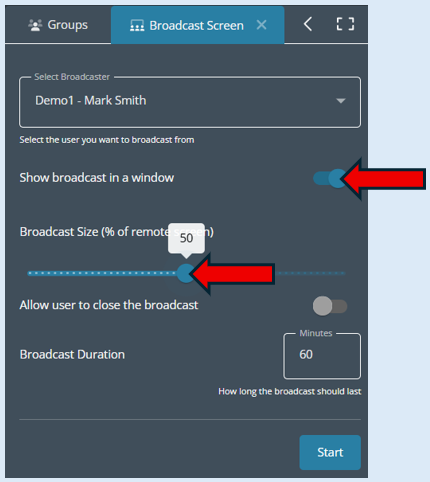
You can then select the size that the window will appear.
The next option is ‘Allow user to close the broadcast’. If you would like the device users to have control over the broadcast they receive, then toggle to the ‘On’ position.
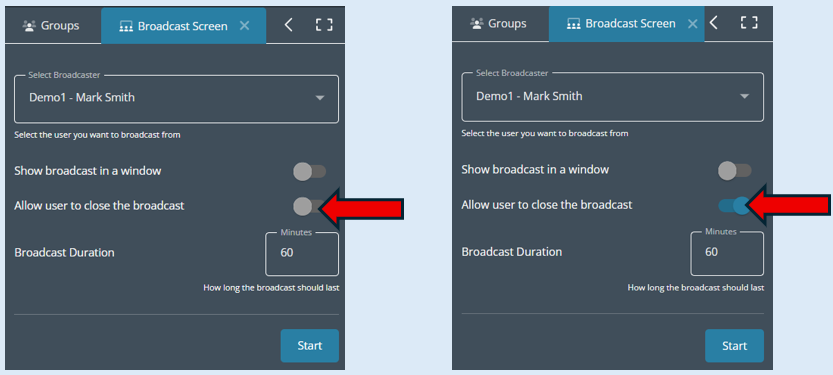
By switching this to the ‘On’ position the device user has the ability to close down the broadcast on their screen (This will not affect any other device or the actual broadcast).
The final setting is deciding the maximum time that the broadcast can run for. This option will stop the broadcast from running over into other sessions. We would recommend that you set this to no longer than the end of your current session.
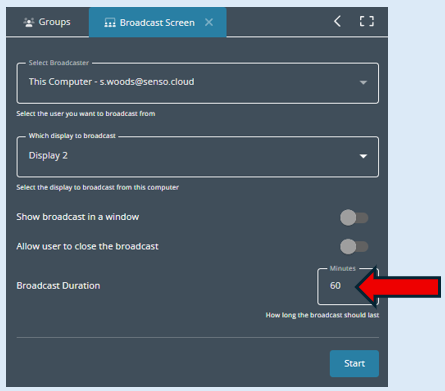
The broadcast duration has been set for 60 minutes, as soon as the broadcast starts the broadcast will start to count down automatically. If you pause the broadcast at any point the timer will continue to count down.
Please note - You will be able to close the broadcast at any point if required. This will be explained within this guide.
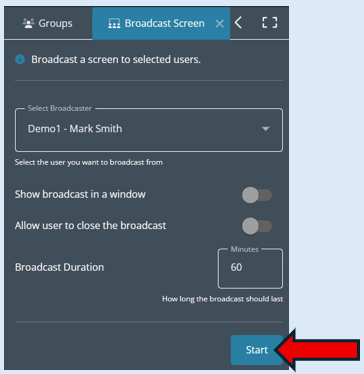
The final set-up step to start the broadcast is to select the ‘Start’ button.
Managing the broadcast
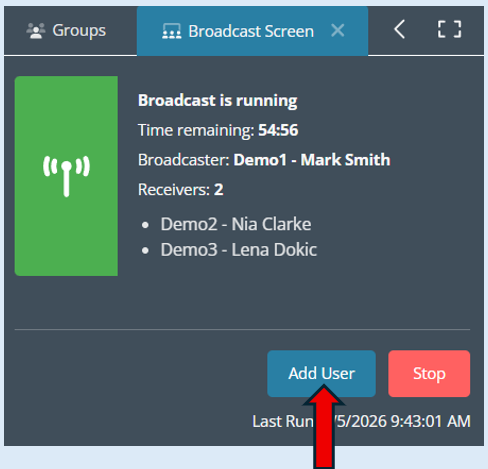
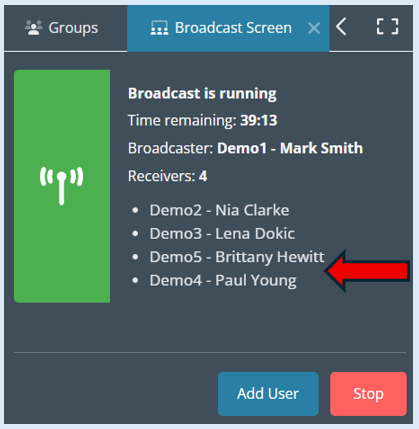
You will be able to see all the information about the current broadcast.
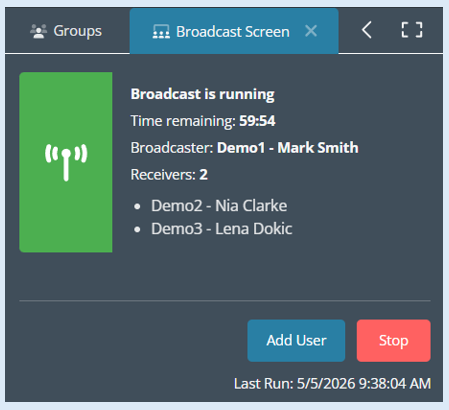
This broadcast will now be received on the selected devices.
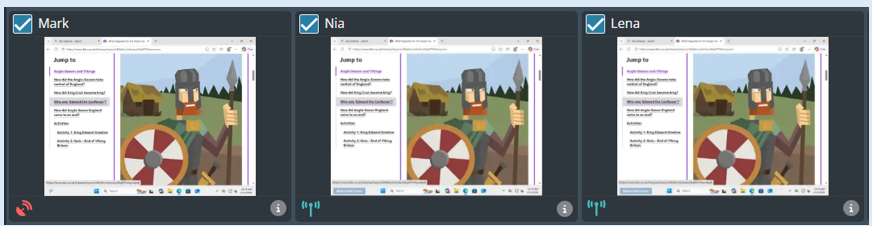
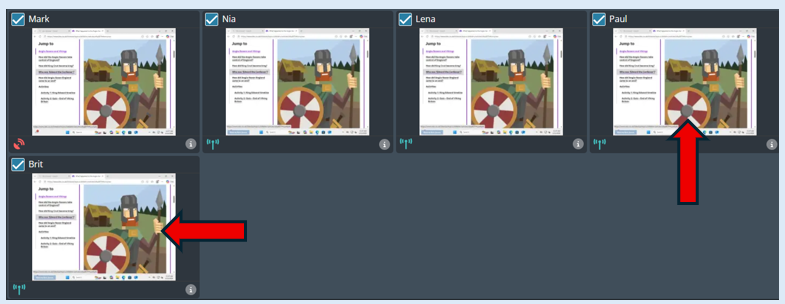
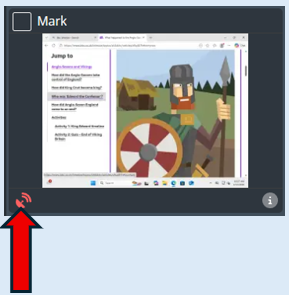
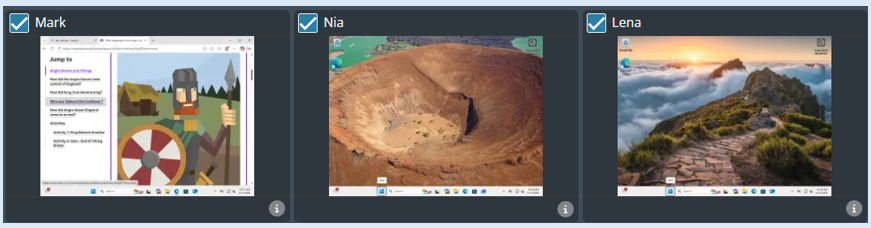
On each thumbnail that is part of the broadcast an icon will appear. The broadcaster will have a red icon indicating this is the user/device that the broadcast is coming from.
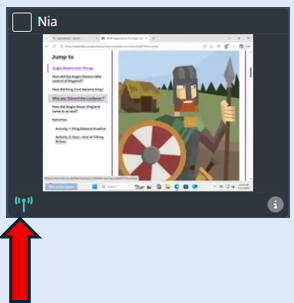
The devices that are receiving the broadcast will have a green icon indicating that they are receiving the broadcast.
You can stop the broadcast at any point by clicking the ‘Stop’ button.
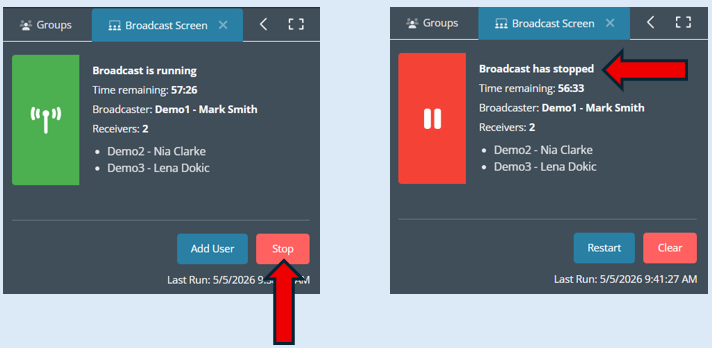
When the broadcast has been stopped, the timer will continue to count down.
The broadcast will be removed from the devices that it is being broadcast to.
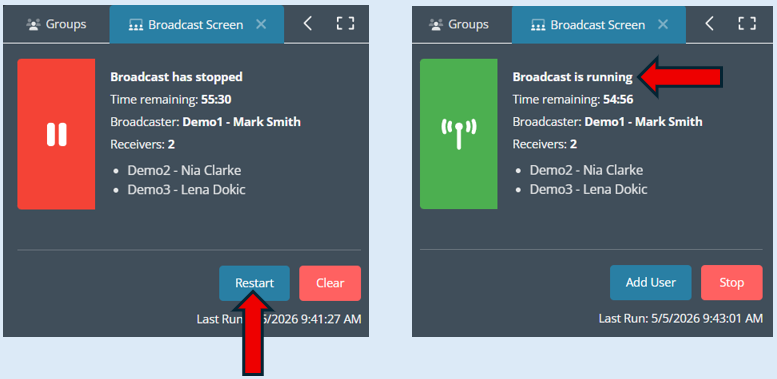
To continue the broadcast, select the ‘Restart’ button.
If you want to clear the broadcast. Select ‘Stop’. Then select ‘Clear’.
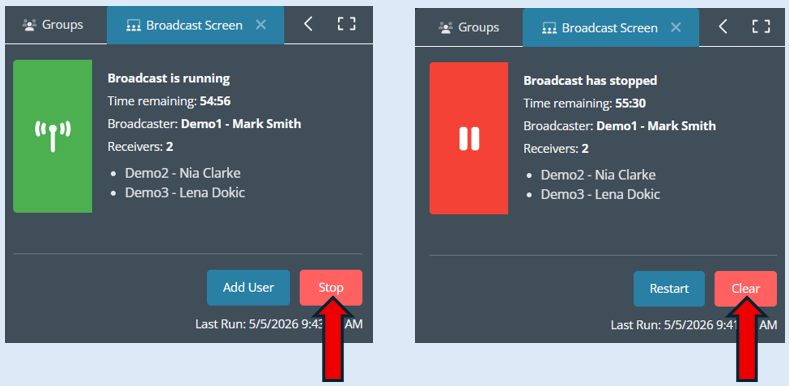
This will take you back to the initial set up box. You can start a new broadcast if required.
Adding Users to a broadcast
To add devices to a broadcast, select ‘Add User’.
An additional option box will open advising you to select the users you wish to add to the broadcast.
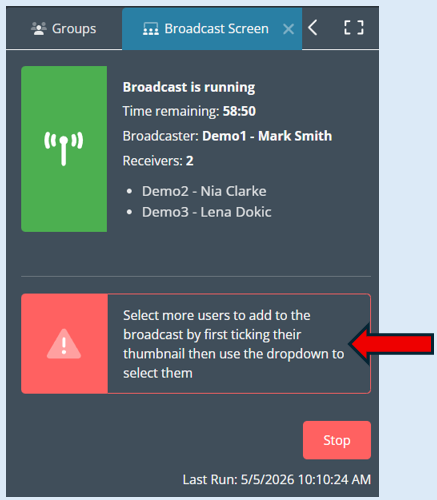
First. we select the users we wish to add into the current broadcast by selecting the users thumbnail. We are going to select ‘Paul’ and ‘Brit’ for this example.
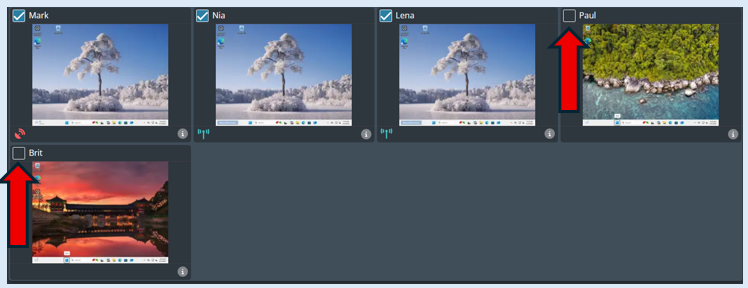
A blue tick will show in the thumbnails that have been selected.
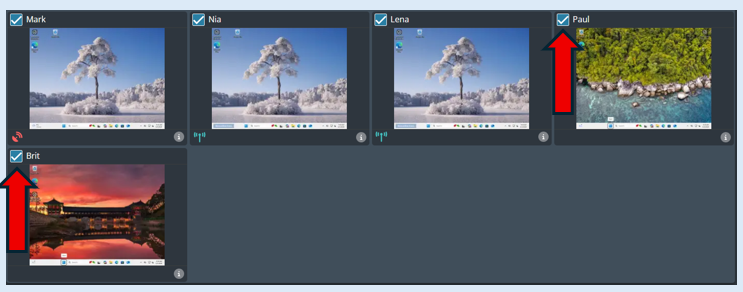
Once selected, the users ‘Paul’ and ‘Brit’ will appear in the ‘Add user’ dropdown option.
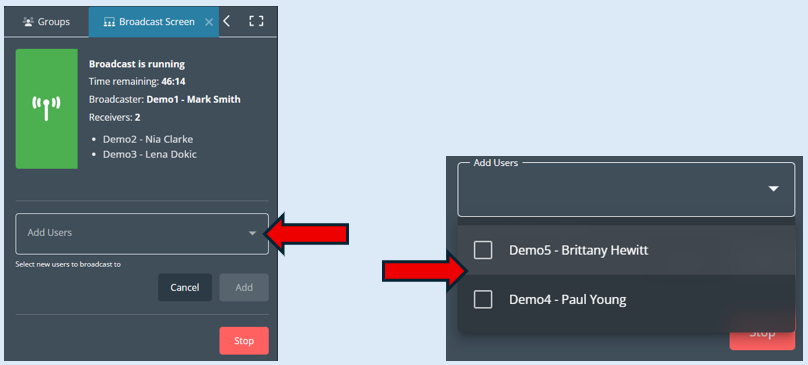
Tick the users that need to be added into the broadcast.
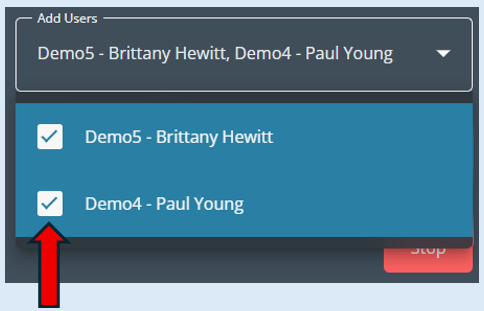
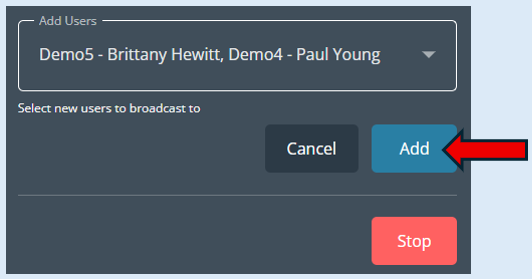
The user names that you have selected will appear in the ‘Add User’ field. Then select ‘Add’.
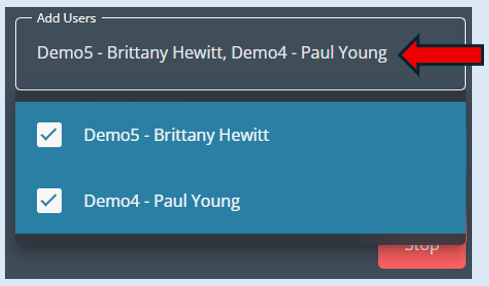
Next, click anywhere on the screen, the ‘Add’ button will now be visible. Select this.
The usernames will be added into your broadcast information box.
The broadcast will automatically show on the devices you have added into the broadcast.